
“How big a hard drive do I need?” is the question everyone asks after they’ve bought the cameras — usually when they realize their footage only goes back four days. Size it right up front and you’ll have the history you need when something actually happens.
Five things drive the answer: how many cameras, what resolution, what frame rate, whether you record continuously or on motion, and how many days you want to keep. Let’s make it simple.
Want the exact number for your setup? Run it through our NVR Storage Calculator — plug in your cameras and retention and it gives you the drive size. This guide explains what’s behind that number so you can make smart trade-offs.
The Quick Answer (Most Homes)
If you just want a starting point for a typical home system recording on motion with H.265:
- 4 cameras, 1080p, 30 days: ~2 TB
- 4 cameras, 4K, 30 days: ~4 TB
- 8 cameras, 4K, 30 days: ~8 TB
Those assume motion recording and efficient compression. Record 24/7 instead and the numbers climb fast. Below is how to tune it.
The 5 Things That Set Your Storage
1. Resolution — 4K Roughly Doubles 1080p
Higher resolution means more detail and more data. As a rule of thumb, 4K uses about twice the storage of 1080p for the same settings. A common benchmark: budget about 1 TB per camera per month of continuous 1080p, or ~2 TB per camera per month at 4K. Motion recording cuts that dramatically (see below).
2. Continuous vs. Motion Recording — The Biggest Lever
This is the single biggest thing you control. Recording only on motion cuts storage by 60–80% for most homes, because nothing’s being written when the scene is empty. Most driveways, yards, and doors sit still the vast majority of the day. The one caution: set a pre-motion buffer (5–10 seconds) so you capture the run-up to an event, not just the moment after. For most homeowners, motion recording with a buffer is the sweet spot.
3. Frame Rate — 15 fps Is Plenty
Surveillance doesn’t need cinematic frame rates. 15 fps is the standard and looks perfectly smooth for security footage. Dropping from 30 to 15 fps roughly halves storage. The exception: a camera aimed at a road or gate to catch license plates on moving vehicles — bump that one to 30 fps. For everything else, 15 is fine.
4. Compression — Use H.265
The codec matters a lot. H.265 uses about half the storage of the older H.264 with no visible quality loss. Make sure your cameras and NVR are set to H.265 (some ship on H.264 by default). One tip from the field: running every camera on H.265 can tax an older NVR’s processor — if you notice lag, leave one or two cameras on H.264 and the rest on H.265.
5. Retention — Be Honest About What You’ll Review
Everyone wants 30 days; most people only ever look back a week. Longer retention = bigger drive. Decide what you’d realistically need: 14 days covers most home situations, 30 is comfortable, 60–90 is for higher-risk or business use. Don’t pay for 90 days of drive if you’ll never scroll past day 7.

The Drive Itself — This Part Is Not Optional
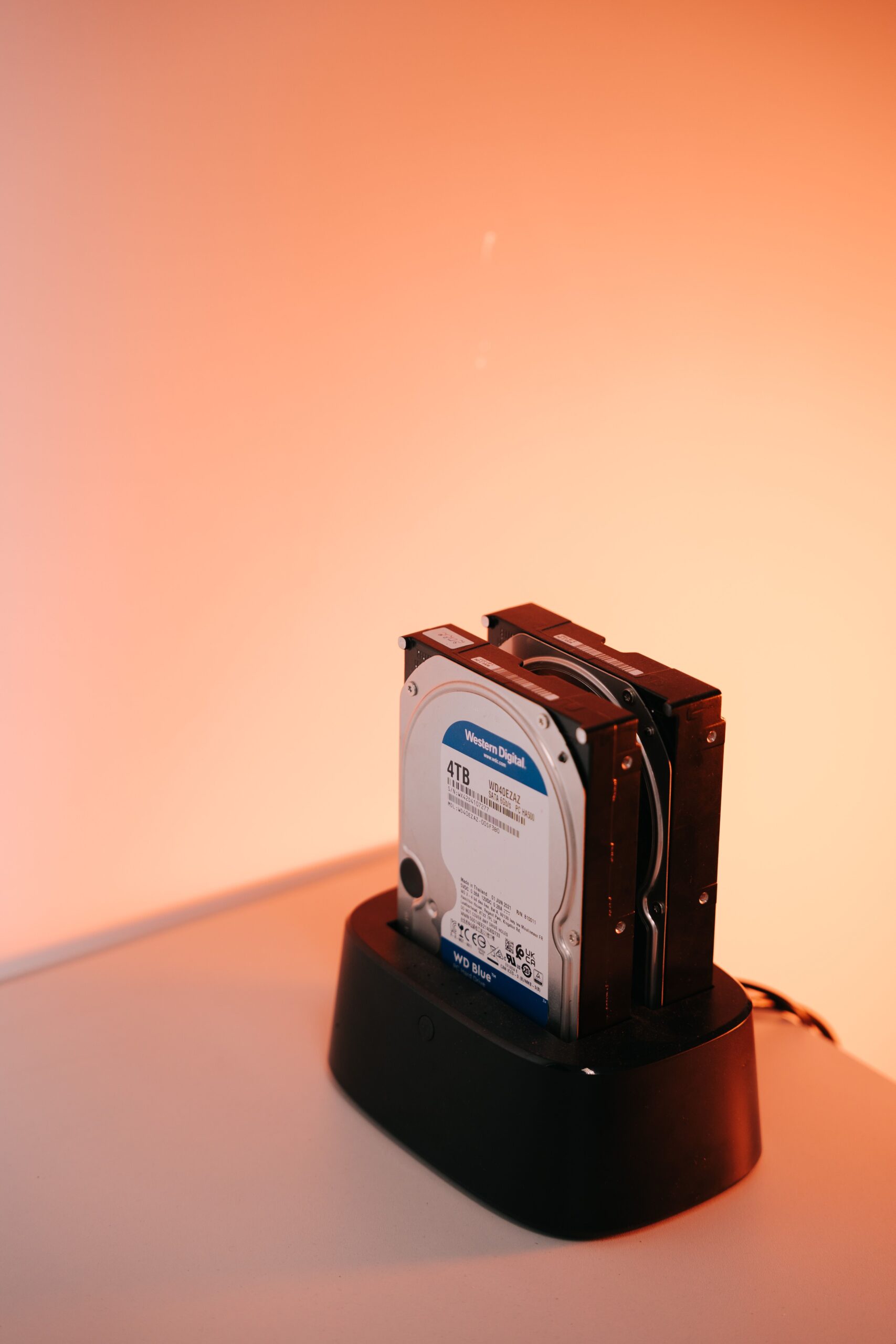
Whatever size you land on, buy a surveillance-rated hard drive — WD Purple or Seagate SkyHawk. This is the mistake I see most: someone drops a spare desktop drive (WD Blue, Seagate Barracuda) into an NVR to save money. Desktop drives aren’t built for the constant 24/7 writing a camera system does, and they fail in 6–18 months — often taking your footage with them right when you need it. Surveillance drives are built for this exact load and last 5+ years. Two more things: skip SSDs (the constant writing burns them out in a year or two) and skip SMR drives (slow for this workload). And leave about 15–20% headroom over your calculated number for motion spikes.
2026 Storage Sizing — Quick Reference
Ballpark drive sizes by setup, assuming H.265 and 15 fps. “Motion” assumes a typical residential scene.
| Setup | Motion, 30 days | 24/7, 30 days | Recommended Drive |
|---|---|---|---|
| 4 cam · 1080p | ~1–2 TB | ~3 TB | 4 TB |
| 4 cam · 4K | ~4 TB | ~6 TB | 6–8 TB |
| 8 cam · 1080p | ~3 TB | ~6 TB | 8 TB |
| 8 cam · 4K | ~8 TB | ~12–16 TB | 12 TB+ |
| Bottom line: A 4 TB surveillance drive covers most 4-camera homes for a solid month on motion recording. Going 4K on 8 cameras pushes you toward 12 TB and into “buy two bays or a NAS” territory. When in doubt, size up one tier — you’ll grow into it. | |||
How to Stretch Your Storage (Free Wins)
Before buying a bigger drive, these settings get you more days out of the drive you have: switch every camera to H.265 (halves it), record on motion with a buffer instead of 24/7 (60–80% savings), drop to 15 fps where you don’t need plate capture, and shorten retention to what you’ll actually review. Stack those and a modest drive lasts far longer than the spec sheet suggests.
Bottom Line
For most homes: a 4 TB surveillance-rated drive, H.265, motion recording, 15 fps gets you about a month of history on four cameras. Going 4K or eight cameras? Size up and plan for two drive bays or a NAS down the road. Run your exact numbers through our Storage Calculator before you buy — it takes the guesswork out.
Frequently Asked Questions
How long will a 2TB NVR record?
A 2TB drive holds roughly one to two weeks of continuous footage for a small 1080p–4MP system of about four cameras, and considerably longer on motion-only recording. Higher resolution or more cameras shortens that fast. For your exact setup, run the numbers in our NVR storage calculator.
How long will 4TB last on CCTV?
A 4TB drive roughly doubles the 2TB figures — around two to four weeks of continuous recording for a typical four-camera 4MP system, or a month or more on motion-only. The NVR storage size chart breaks this down by camera count and resolution.
Is 2TB a lot of storage for CCTV?
For a small home system of a few cameras, 2TB is a reasonable starting point and covers one to two weeks of continuous footage. For 4K cameras, many cameras, or longer retention it fills quickly, so 4TB or more is common. Match the drive to how many days of footage you actually want to keep.
What happens when NVR storage is full?
By default, almost all NVRs overwrite the oldest footage first — known as loop or cyclic recording — so the system keeps running and you always have the most recent days available. If overwrite is disabled, recording simply stops when the drive fills, so check that loop recording is on unless you have a specific reason to keep older clips.
How much NVR storage do I need?
It depends on cameras, resolution, retention, and recording mode. Rough starting points on motion recording with H.265: four 1080p cameras for 30 days need about 2 TB; four 4K cameras about 4–6 TB; eight 4K cameras about 10–12 TB.
Does motion recording really save storage?
Yes — 60–80% for most homes, because nothing is written when the scene is empty. Set a 5–10 second pre-motion buffer so you capture the run-up to an event, not just the moment after.
What hard drive should I use for an NVR?
A surveillance-rated drive such as WD Purple or Seagate SkyHawk, built for constant 24/7 writing. Avoid desktop drives (they fail in 6–18 months), SSDs (the constant writing wears them out), and SMR drives (too slow for this workload).
Is 4K worth the extra storage?
4K roughly doubles storage versus 1080p, but the camera price gap is small and the detail helps for faces and plates. H.265 compression plus motion recording keeps the storage cost manageable for most homes.