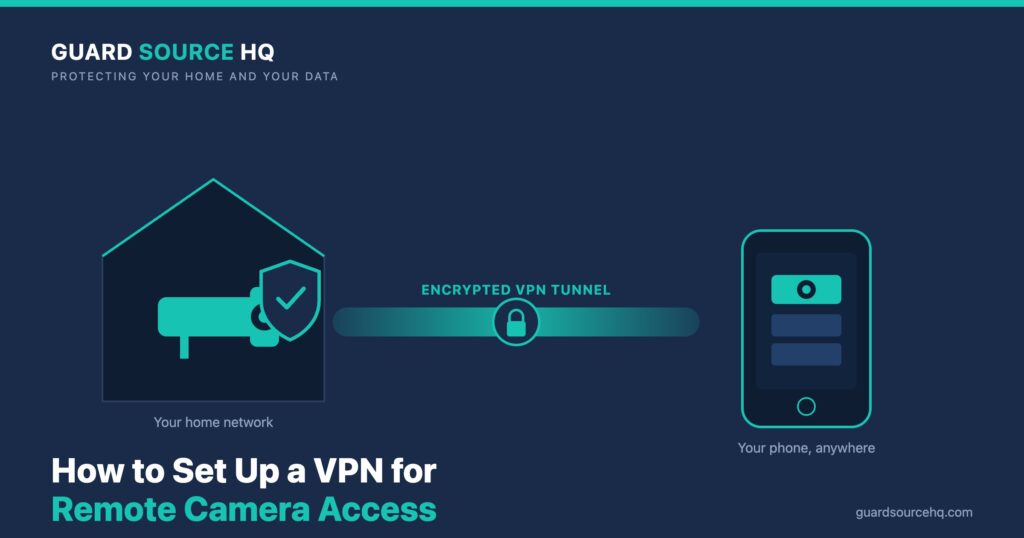
Viewing your security cameras from outside the house is one of the main reasons people install them in the first place. The wrong way to do it is to forward ports on your router and expose your cameras or NVR directly to the internet — that’s how camera systems end up scanned, brute-forced, and hijacked. The right way is a VPN: you connect to your own home network through an encrypted tunnel and reach your cameras as if you were standing in the living room. This guide walks through exactly how to set that up.
If you haven’t picked a VPN yet, start with our breakdown of what a VPN actually does and which one is best. If you’d rather protect every device on your network at once, see our companion guide on configuring a VPN on your home router.
Why a VPN Beats Port Forwarding
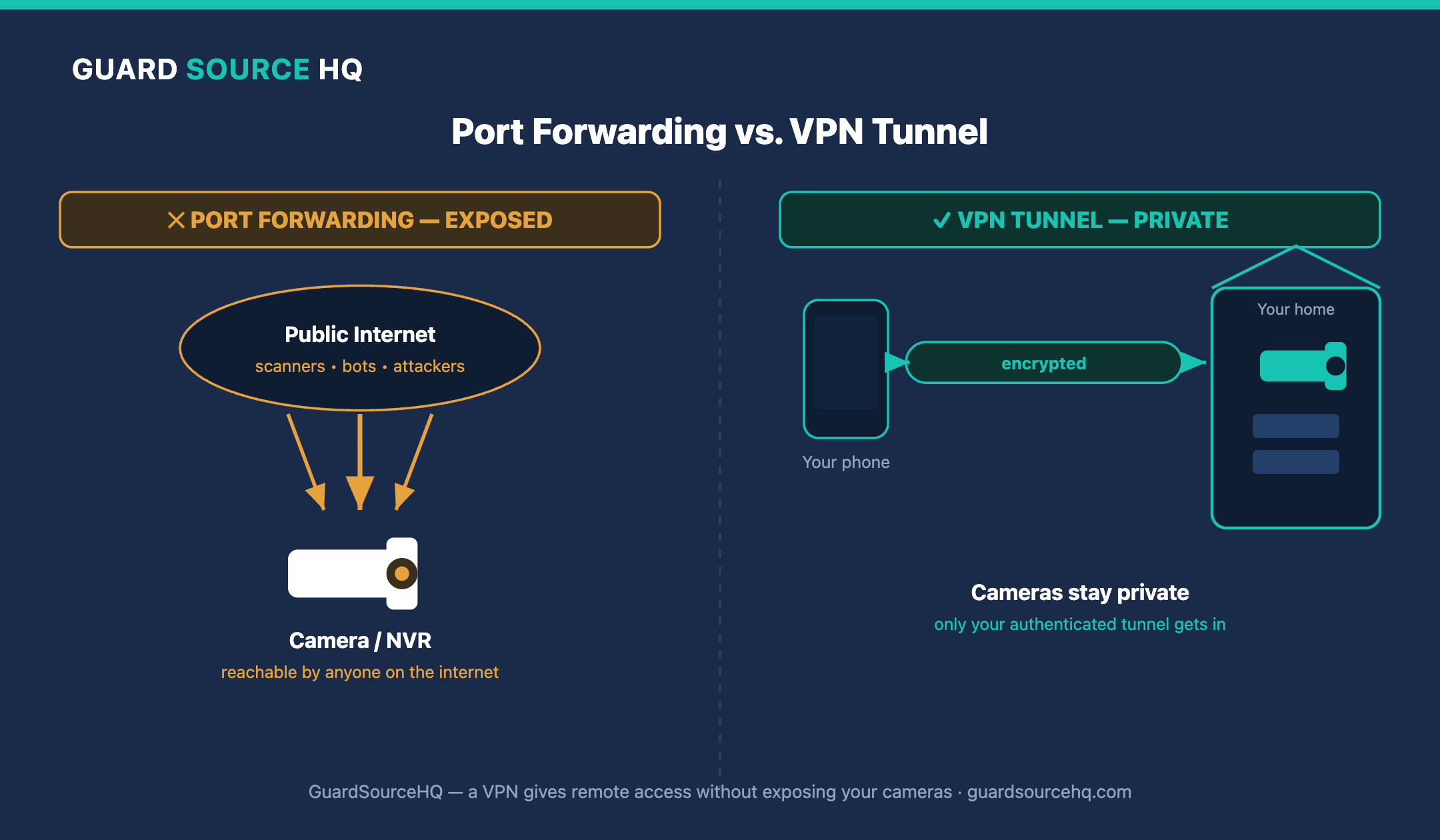
Port forwarding opens a doorway from the public internet straight to your camera or recorder. Even with a strong password, that door is constantly probed by automated scanners looking for known vulnerabilities. A VPN closes that door entirely. Nothing about your cameras is exposed publicly; the only way in is through an authenticated, encrypted tunnel that terminates on your own equipment. A VPN server does open a single incoming port, but unlike a forwarded camera port it exposes only the encrypted VPN service — never the cameras themselves — and turns away any connection that doesn’t present your key. It’s the same approach businesses use to protect internal systems, scaled down to a home.
Two Ways to Run a VPN for Camera Access
There are two distinct approaches, and it’s important not to confuse them. A commercial VPN app protects the device you’re browsing on and hides your traffic, but on its own it does not create a tunnel back to your home network. To reach your cameras remotely you need a server-side VPN at home — software running on your router, NVR, or a small always-on device that accepts incoming connections. For remote camera access, the home VPN server is the piece that matters — a commercial VPN app can’t reach your cameras on its own.
Step 1: Choose Where the VPN Server Lives
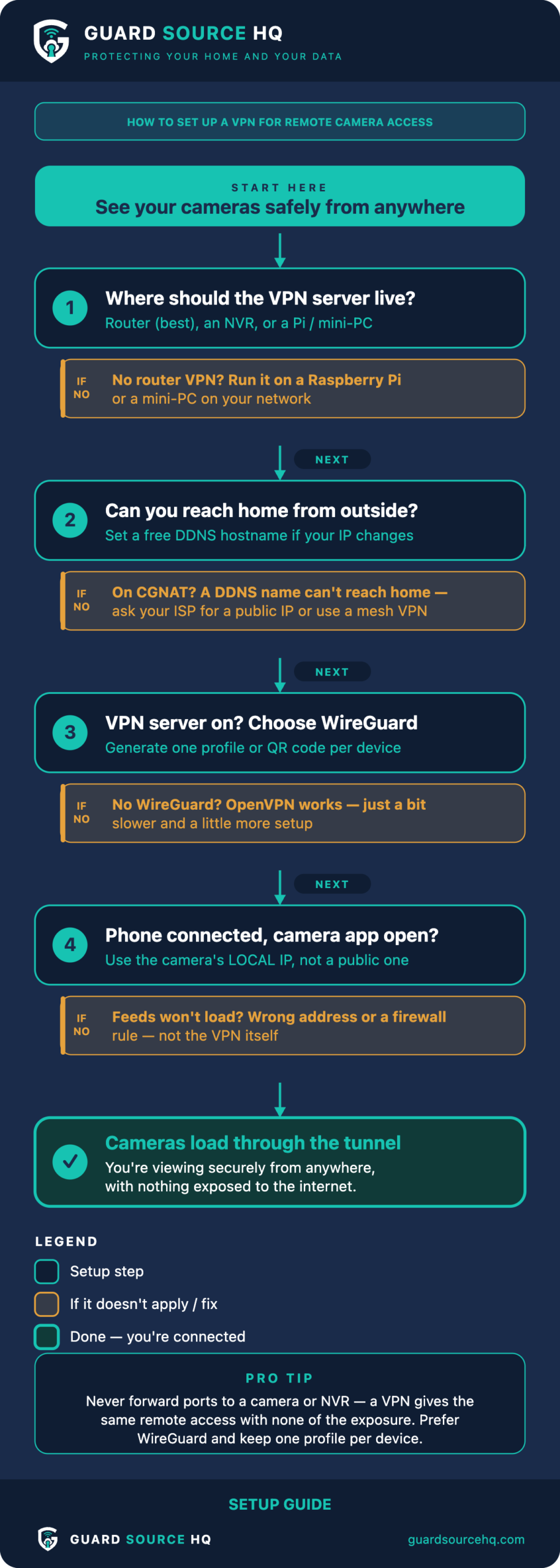
You have three common options. Many modern routers include a built-in VPN server (OpenVPN or WireGuard) — the simplest path if yours supports it, covered in detail in our router VPN guide. Some NVRs offer their own remote-access service, though these vary in quality and security. Or you can run a dedicated VPN server on a Raspberry Pi or mini PC plugged into your network. For most homes, the router-based option is the cleanest.
Step 2: Confirm You Can Reach Your Network From Outside
A home VPN server needs a way for your phone to find your house. If your internet provider gives you a dynamic IP that changes, set up a dynamic DNS (DDNS) hostname — many routers and NVRs include this for free. This gives you a stable address like yourhome.ddns.net that always points to your current IP, so the VPN connection knows where to go even after your IP changes. One caveat: if your internet provider uses Carrier-Grade NAT (common on some cable and cellular connections), a DDNS hostname alone can’t reach your home. Check whether your router’s WAN IP matches the public IP shown on a “what’s my IP” site — if they differ, ask your ISP for a dedicated/public IP, or use a mesh VPN service, which routes around CGNAT.
Step 3: Enable and Configure the VPN Server
In your router (or chosen device), enable the VPN server, choose WireGuard if it’s offered (it’s faster and simpler than OpenVPN), and generate a configuration profile or QR code for each device you want to connect. Keep the number of profiles tight — one per phone or laptop that genuinely needs access. Save the configuration file somewhere safe; you’ll import it into the VPN client app on your phone.
Step 4: Connect Your Phone and Open Your Camera App
Install the matching VPN client on your phone, import the profile, and connect. Once the tunnel is up, your phone behaves as though it’s on your home Wi-Fi. Open your camera or NVR app exactly as you would at home — using the camera’s local IP address, not a public one — and the live feeds should load. If they don’t, the issue is usually the local address or a firewall rule, not the VPN itself.
Troubleshooting Remote Access
If the tunnel connects but cameras won’t load, you’re likely pointing the app at the wrong address — double-check you’re using the local IP. If the tunnel won’t connect at all, verify your DDNS hostname resolves and that the VPN port is reachable. For broader connectivity problems, our guides on why you can’t view your cameras remotely and cameras that stopped working after a router change walk through the most common culprits. And if access broke right after you changed your network password, our guide on resetting an NVR password may help.
Commercial VPN vs. Home VPN Server: Quick Comparison
| Commercial VPN app | Home VPN server (router / NVR / Pi) | |
|---|---|---|
| Main job | Privacy on the device you’re using | A tunnel back to your home network |
| Reaches your cameras remotely? | No | Yes |
| Where it runs | The provider’s servers | Your own equipment |
| Cost | Monthly subscription | Free (uses hardware you already own) |
| Best for | Day-to-day browsing privacy | Remote camera access |
Frequently Asked Questions
Do I need a paid VPN app to view my cameras remotely?
No. A commercial VPN app protects the device you’re browsing on, but it can’t reach your home cameras. For remote access you need a VPN server at home — usually built into your router — which is free to enable.
Should I use WireGuard or OpenVPN?
Choose WireGuard if your router offers it. It connects faster, uses less battery, and is simpler to configure. OpenVPN still works well and is a fine fallback if WireGuard isn’t available.
Is port forwarding ever safe for cameras?
It’s best avoided. Forwarding ports exposes your camera or NVR directly to the internet, where it’s constantly scanned and attacked. A VPN gives you the same remote access with none of that exposure.
What happens when my home IP address changes?
Set up a free dynamic DNS (DDNS) hostname on your router or NVR. It keeps a stable address like yourhome.ddns.net pointed at your current IP, so your VPN always knows where to connect.
Can I use my NVR’s built-in remote access instead?
You can, but quality and security vary widely between brands. A router-based VPN keeps you in control and avoids relying on a manufacturer’s cloud service.
Why does my camera app say “offline” when I’m away?
If the tunnel is connected but the app still shows offline, you’re usually either on cellular with the VPN not actually connected, or the app cached a setting that only works on home Wi-Fi. Reconnect the VPN, then reopen the app using the camera’s local IP address.
Related Tools & Guides
- What Does a VPN Actually Do? Which VPN Is Best
- How to Configure a VPN on Your Home Router
- Can’t View Your Cameras Remotely? Step-by-Step Fixes
- Camera Troubleshooting Tool
Who runs Guard Source HQ
Guard Source HQ grew out of problems I’ve spent years solving for myself, friends, and family. I’ve moved five times, set up all kinds of security camera systems, and helped friends and family install and troubleshoot theirs. I’ve had my own router compromised through a smart device, and people now come to me or get sent my way when something online doesn’t look right or after they’ve been scammed. I built Guard Source HQ to turn what I’ve learned from solving those problems into guides and tools regular people can use.
Need help with something I haven’t covered? Ask a question or suggest a topic.