

Security camera night vision not working? You’re not alone. The camera looks great during the day, but once the sun goes down you get a washed-out white blur, a black screen, a foggy haze, or a bright ring of glare in the middle of the image. Night vision problems are extremely common, and the frustrating part is that the camera usually isn’t broken at all — the night image is being ruined by reflection, dirt, or placement. This guide covers the real causes in order, starting with the one that fixes the most cases: IR glare.
Security Camera Night Vision Not Working? First, Understand How It Works
Most security cameras see at night using infrared (IR) LEDs – a ring of small lights around the lens that emit invisible light the camera’s sensor can detect. At dusk, the camera switches to night mode (you’ll often hear a faint click), turns on the IR LEDs, and shows you a black-and-white image. Almost every night vision problem is really a problem with that IR light: it’s either bouncing back into the lens, being blocked, or not turning on. Once you know that, the fixes make sense.
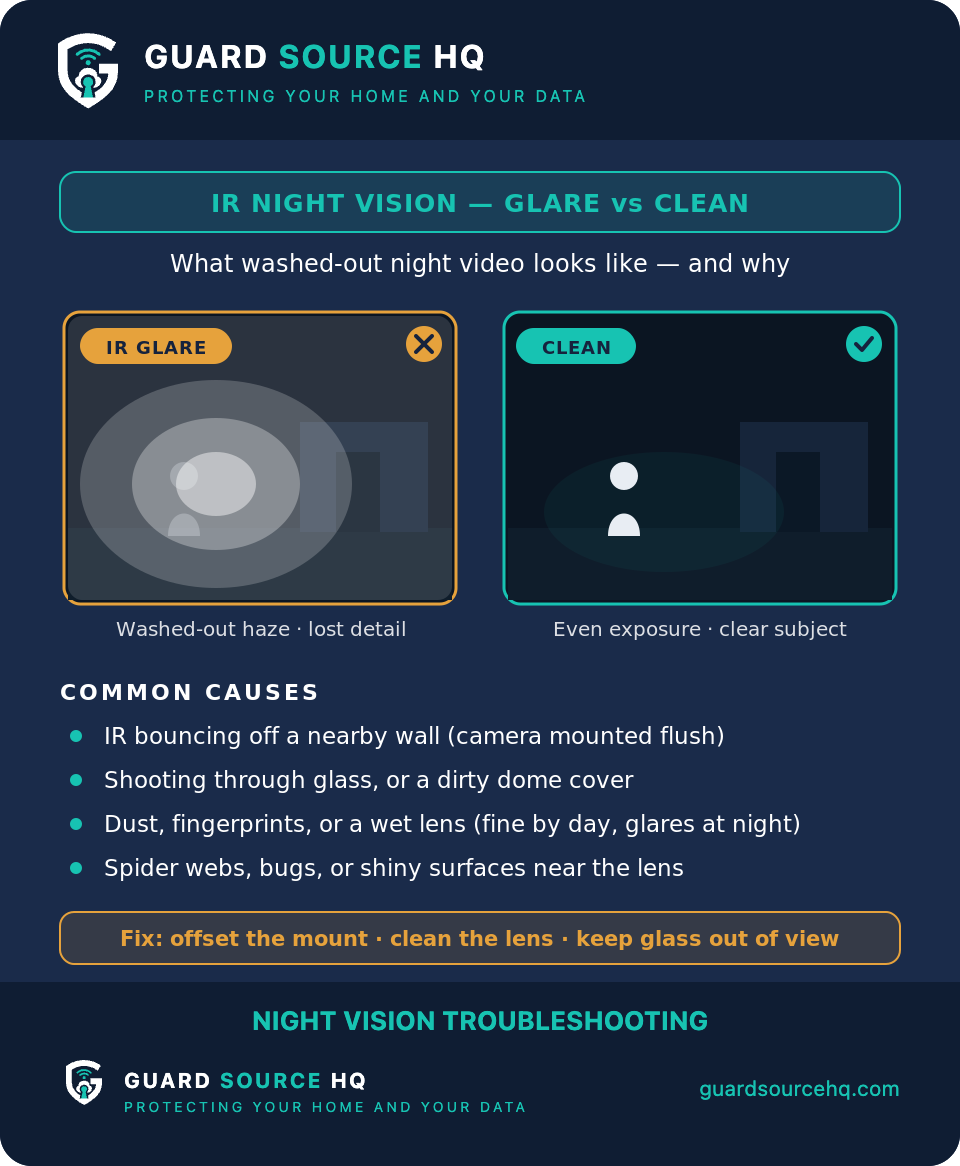
Fix 1: The IR Glare Problem (This Solves Most Cases)
If your night image has a bright white glow, a halo, or a washed-out center, you almost certainly have IR reflection. The camera’s own infrared light is bouncing off a nearby surface and flooding straight back into the lens – like high beams reflecting off fog.
The usual culprits are: a camera mounted too close to a wall, ceiling, or soffit that reflects the IR; a camera shooting through a window (glass reflects IR straight back – this is the number one cause indoors); spider webs, dust, or rain on the lens or housing; or the camera being too close to its own protective dome, causing internal reflection.
The fixes, in order of how often they work: never point a camera through a window at night – mount it outside instead, or disable IR and rely on outdoor lighting. Move the camera away from nearby walls and overhangs so the IR has nothing close to bounce off. Clean the lens and housing, and clear away any spider webs (warm camera housings attract spiders, so this recurs). If your camera has an adjustable IR or a rubber gasket around the lens, make sure the gasket is seated so internal light doesn’t leak onto the lens. And if the camera is boxed into a tight mounting spot where you can’t move it away from surfaces, an add-on IR shroud or hood around the lens can block the reflected light before it reaches the sensor.
Fix 2: Confirm Night Mode Is Actually Switching On
If the image is just black at night – not glaring, just dark – the camera may not be entering night mode. Cover the lens fully with your hand for 5 to 10 seconds during the day; you should hear a soft click and see the faint red glow of the IR LEDs as it switches over. (This is the same power-check trick from our guide on a PoE camera not showing up on the NVR.) If it never switches, the light sensor may be obstructed by a sticker, dirt, or a nearby light source tricking it into thinking it’s still daytime.
Fix 3: Check for a Competing Light Source
A nearby porch light, streetlight, or motion light can confuse the camera’s day/night sensor, keeping it in color mode when it should switch to IR – leaving you with a dark, useless image. It can also cause the camera to flip back and forth between modes all night. Either shield the sensor from the competing light or, on many cameras, set the day/night mode to a fixed schedule instead of “auto” so it commits to night mode after a set time.
Fix 4: Make Sure the IR LEDs Are Working
In a fully dark room or yard, look at the front of the camera at night. You should see a faint red glow from the IR LEDs (they’re not bright, but visible up close). If you see nothing and the image is black, the IR array may have failed, or IR may be disabled in the camera’s settings. Check the night-vision or IR settings through your recorder and make sure IR is enabled and set to auto. If it’s enabled and you still see no glow, the LEDs themselves have likely failed.
Fix 5: Distinguish “No Night Image” From “No Image At All”
If your camera shows nothing day or night – not just after dark – then this isn’t a night vision problem; it’s a video feed problem with a different set of causes. Our guide on a camera that has power but no video feed walks through those. Night vision troubleshooting only applies when daytime video is fine and the trouble starts after dark.
Fix 6: Adjust IR Intensity and Exposure
Some cameras let you adjust IR LED intensity or night exposure. If close-up objects are blown out white while the background is invisible, the IR is too strong for the scene – turn it down. If everything is too dark, the exposure or IR may be set too low. Small adjustments here can dramatically improve a night image that’s technically working but poorly balanced.
When the Camera Itself Has Failed
If you’ve eliminated glare and reflection, confirmed there’s no competing light, verified the settings, and the IR LEDs simply don’t light up – the camera’s infrared system has failed. This is a hardware fault and a valid reason for warranty replacement. But check the glare and window issues thoroughly first, because reflection accounts for the large majority of “night vision not working” complaints, and no replacement camera will fix a camera pointed through glass.
Placement Is Prevention
The best night vision fix is good placement from the start: cameras mounted away from walls and overhangs, never shooting through windows, with clear sightlines and clean housings. If you’re still planning your system, thinking through camera placement and lighting up front will save you most of the problems in this guide.
CCTV Night Vision Not Working? The Same Fixes Apply
Whether you call it a security camera or a CCTV camera, the night vision problem and the fix are identical. CCTV cameras use the same infrared (IR) LED system to see in the dark, so if your CCTV isn’t working at night — black screen, washed-out glare, or no switch to night mode — run through the same checks: look for reflective surfaces causing IR glare, clean the lens, confirm the day/night setting is on auto, and make sure the IR LEDs light up. Older analog CCTV systems can also lose night vision if the camera isn’t getting enough power down a long cable run, so check the power supply too.
Why Is My Security Camera Blurry at Night? (But Fine in Daytime)
If the picture is sharp during the day but blurry, hazy, or full of glare once night vision kicks in, the cause is almost always the infrared light bouncing back into the lens rather than a focus problem. The biggest offenders are a nearby wall or eave, a dirty or smudged lens, and shooting through a window — glass reflects IR straight back and creates a bright, blurry haze. Move the camera away from reflective surfaces, clean the lens with a microfiber cloth, and never point an IR camera through glass. If it’s still soft, check that the lens cover or dome hasn’t fogged up with condensation.
Related guides: If the image is soft rather than dark, see why your security camera is blurry. Can’t see the feed at all? Try fixing remote camera viewing.
Frequently Asked Questions
Why is my camera’s night vision not working?
Most often IR glare from a nearby surface or window reflecting infrared back into the lens. Also check that night mode switches on and the IR LEDs are lit.
What is IR glare and how do I fix it?
It is the camera’s own infrared light bouncing off a wall, soffit, or glass back into the lens. Move or angle the camera away from nearby surfaces, or mount it past the eave so its IR doesn’t reflect.
How do I know if the IR LEDs are working?
In the dark, look at the lens — working IR LEDs give off a faint red glow, and a phone camera shows them clearly. No glow means the LEDs or the light sensor may have failed.
Why does my camera work in daytime but not at night?
The sensor and lens are fine; the issue is specific to night mode — IR glare, a competing light source confusing the day/night switch, or dead IR LEDs.
How do you fix night vision on security cameras?
Work through it in order: clean the lens and remove any protective film, check for reflective surfaces causing IR glare, confirm night mode is set to auto (not stuck on day), and verify the IR LEDs glow faint red in the dark. If the LEDs never light up, the camera likely has a power or hardware fault. Most night vision problems are a setting or a reflection — not a broken camera.
What blocks night vision cameras?
The most common culprits are reflective surfaces close to the lens — walls, eaves, glass, or even spider webs — that bounce the camera’s own infrared light straight back and wash out the image. Dirt, condensation, or a protective film on the lens does the same. Repositioning the camera so nothing sits directly in front of it usually solves it.
Can you repair night vision on a camera?
Often yes — if the cause is glare, a dirty lens, or a wrong setting, it’s a free fix you can do yourself in minutes. If the infrared LEDs have actually failed and won’t light at all, repair usually isn’t practical and the camera should be replaced, since the IR array is built into the unit.
How do I turn on night vision on my security camera?
Most cameras run night vision on Auto and switch over on their own, so the real question is where the control lives when you want to force it. Look in the camera’s app or web interface, or in the NVR’s own menu — usually under image or day/night settings, with options along the lines of Auto, On and Off. The exact wording varies by brand. If forcing it On gives you a picture but Auto never switches by itself, the light sensor is what to check, not the LEDs; Fix 2 above walks through that test.
Why isn’t my camera picking up motion at night?
That is a different failure from night vision. If the night image itself looks fine and what’s missing is recordings or alerts after dark, the problem is motion detection rather than the IR system. Start with our guide on a security camera not recording motion.
Who runs Guard Source HQ
Guard Source HQ grew out of problems I’ve spent years solving for myself, friends, and family. I’ve moved five times, set up all kinds of security camera systems, and helped friends and family install and troubleshoot theirs. I’ve had my own router compromised through a smart device, and people now come to me or get sent my way when something online doesn’t look right or after they’ve been scammed. I built Guard Source HQ to turn what I’ve learned from solving those problems into guides and tools regular people can use.
Need help with something I haven’t covered? Ask a question or suggest a topic.